


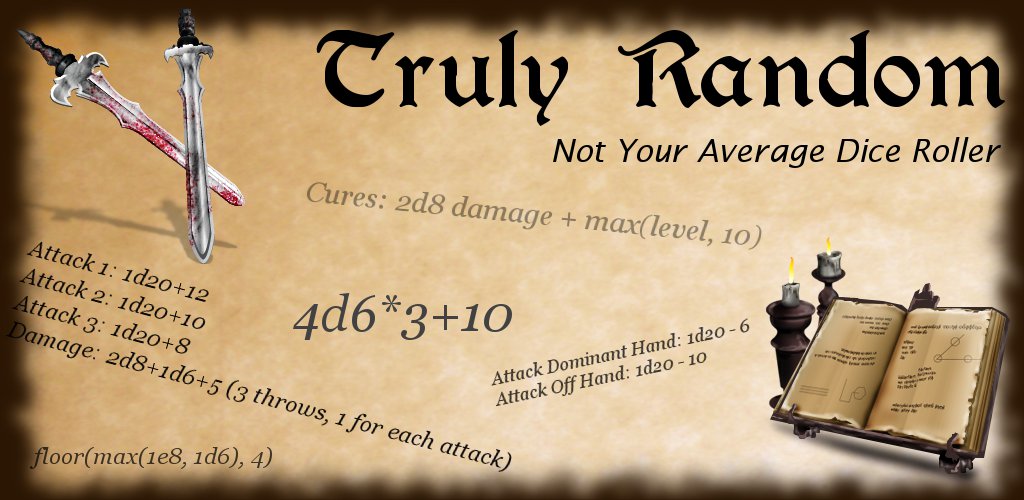

Version 4.5.0 - Google's Android Operating System Applications: Entertainment Release Notes Whether you are exploring the depths of your favorite dungeon, staring in the face of an evil dragon, or just making a nuisance of yourself with the local townsfolk, Truly Random can handle your dice rolling needs. Our powerful application gives you the flexibility to handle those dicey situations.
See what others are saying!
- Great article on Obsidian Portal! He wrote the Tavern Generator which you can find here in the forums.
 Visit us on Facebook
 Visit us on YouTube

RPG - Dice Roller
This portion of the application is aimed at those brave adventurers engaged in the world of fantasy role playing games. No need to worry about forgetting your dice. This application will roll the dice for you. Choose the number of dice to roll (1..99), which die (d4, d6, e8, etc), apply a modifier (-99..+99) and make your roll. The totals will be calculated and displayed for you along with the detail for each die. Click here for a list of the dice supported and an explanation of Exploding Dice.
Save Your Dice Sets
Common sets of rolls can be saved. For example, if you find that you need to roll a certain combination repeatedly, save that combination and just pick it from the list when needed.
Not Just For RPG
Finally, while the RPG crowd was the original motivation for developing this application, rolling dice of various types and numbers is common in a variety of games. If you've lost those dice from your favorite board game, you no longer have to hunt for others or cannibalize other games. Just choose and roll.
More Details
Click here for a detailed description of this feature as well as screenshots

RPG+ - RPG Dice Notation
Enter a formula in RPG Dice Notation (an abridged version) to handle those complicated scenarios where rolling a number of d6 just doesn't cut it. Now you can define complex expressions allowing you to mix various dice together, multiply, add, or subtract their result in almost any way you need. For example:
- 4d6+3 = Roll 4 d6 dice, sum them, add 3 to the result
- (4d6+3)*2 = Roll 4 d6 dice, sum them, add 3 to the result. Then multiply this value by 2.
- 5*4d6+3 = Multiply 5 times the sum of 4 d6 dice then add 3 to the result
- 4+min(3d8, 12) = Roll 3 d8 dice, sum them, take the smaller of this and the number 12. Add that value to 4.
More Details
Click here for a detailed description of this feature as well as screenshots

RPG Char - Character Generation
A common task in Role Playing Games is the generation of a character. This will help generate a character where it is required to throw four six-sided (d6) dice, keeping only the best three for up to six attributes. Some DMs will allow the re-roll of any 1s that may have been thrown. Others might have different rules. After the dice have been thrown, select any that need to be re-rolled and press the "Roll Selected" button and just those will be rolled again. The total on the right will only reflect the three highest dice. 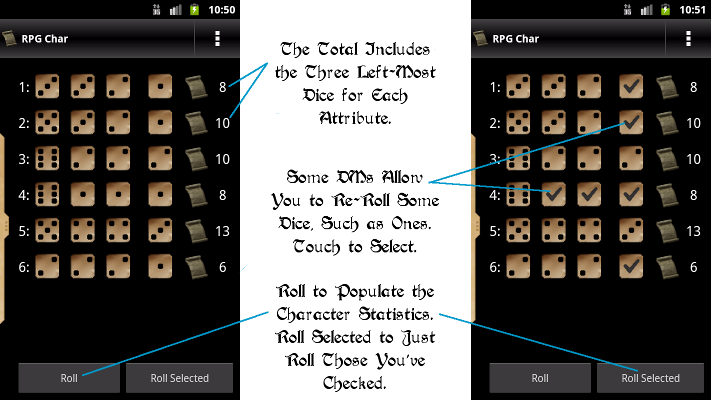

Custom Dice Sets
Define your own Custom Dice Sets. You are no longer limited to just numbers on the faces of each die. Each Dice Set includes one or more dice. Each die can have as many faces as you choose and each face contains the text you enter. For example, consider a custom set of dice you name "Dinner". You create one die where each face is an entree, another a vegetable, another a fruit, and finally a desert die. Now rolling the dinner dice set adds a little randomness and spontaneity to your nightly meal. Invent your own games!
More Details
Click here for a detailed description of this feature as well as screenshots

Decks of Cards
Create your own decks of cards that can be used to support your gaming system.
More Details
Click here for a detailed description of this feature as well as screenshots

Campaigns
Group the saved items from the RPG, RPG+, Custom Dice Sets, and Decks of Cards together to define your own Campaign. The Campaign gives you ready access to your character or game specific equipment, abilities, spells, etc.
More Details
Click here for a detailed description of this feature as well as screenshots

Global Constants
Global Constants can be used in the expressions you define for RPG Plus and Custom Dice Sets. Now you can define a global constant that can be applied to many calculations allowing you to update it in one place, when needed, and automatically apply to each subsequent roll. For example, if you were to define a constant to represent your character's level, lets call it ChrLevel, and create an expression to represent the damage caused by a given weapon as such: Damage: 2d8+1d6+ChrLevel When your character's level increases, you just change it in one place and all your saved rolls will automatically start to use the new value.

Lottery - Lottery Number Generator
This is provided for entertainment purposes only. Here you can define many of the popular lottery games across the US - at least those that involve choosing random numbers from a particular range. This will support the following three types of lottery games:
- A number of picks plus a bonus. MEGA Millions is an example of this type of lottery. You choose 5 numbers in a range of 1..56 and a bonus (MEGA Ball) number from a range of 1..46.
- A number of picks without a bonus. This is like the game noted above except without the additional bonus.
- A number of digits. Games where you choose 3 or 4 digit numbers are represented here.
A couple of definitions are provided by way of example, but are not guaranteed to be a match with the rules of the games in your area. Please remember that this is provided for entertainment purposes only and does not condone or encourage the playing of lottery games. 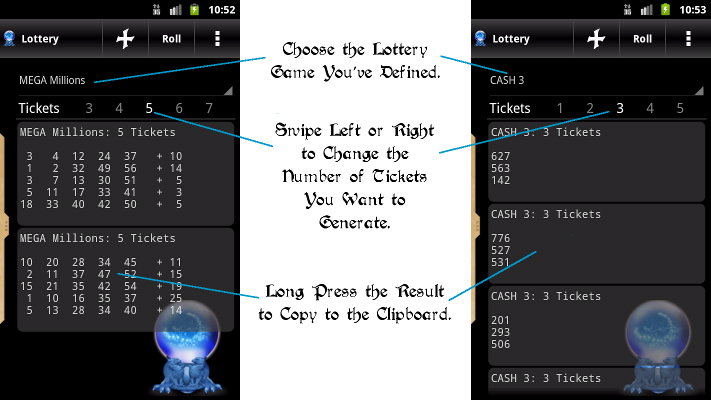
Support
With many new devices on the market, it is difficult to test against all configurations. If you run into a problem, please contact me via email (there is an "Email the Developer" button on each page of the help), through the contact screen on this site, or by using the support forums I've provided here. The market comments are inadequate to provide support or really even to learn the true nature of any problem you might be experiencing. Thank you. Android is a trademark of Google Inc. Use of this trademark is subject to Google Permissions.